AI Setup
Set up the on-device AI for narrative drafting, portraits, and function analysis.
On this page (5)
sight·line includes AI that helps you draft observation narratives, summarize sessions, build clinical portraits, and analyze behavioral functions. The AI runs entirely on your own machine. Your observation data never leaves your computer, and no internet connection is required.
AI features require the Pro license tier. Without it, you’ll see a message: “AI features require the Pro tier.”
On-device by design
sight·line has no cloud AI option. Every AI feature is served by a model running locally on your Mac, so observation records are not transmitted to a third-party AI provider. For FERPA-covered settings, that gives the district a short answer for its AI privacy review: no cloud AI provider receives the records. The district still decides whether Sightline requires approval or an agreement under its own policy.
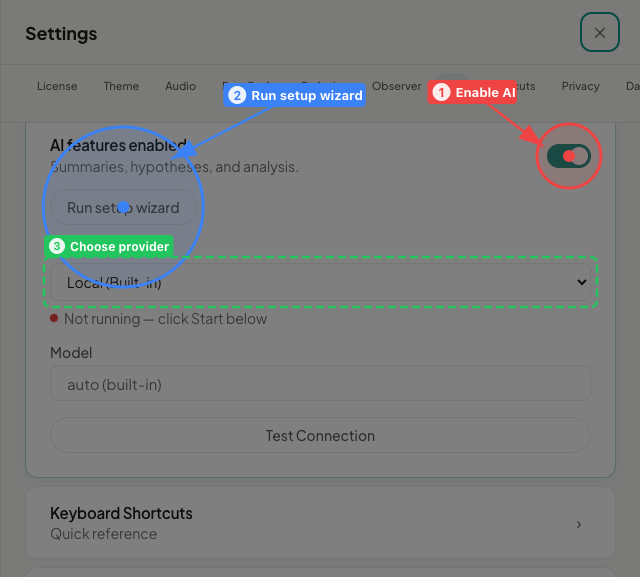
Run the setup wizard
sight·line walks you through AI setup with a short wizard. You can run it during first launch, or anytime from Settings > AI Assistant > “Run setup wizard”.
Step 1: Start the local AI
- Click Start Local AI to launch the built-in AI engine.
- A status indicator appears. Green means connected.
- If you haven’t downloaded a model yet, the app prompts you to open the Model Manager (see Download a local model below).
Step 2: Test the connection
Click the test button to verify the engine is running. The wizard confirms success, or shows an error if the engine isn’t running yet (for example, if no model has been downloaded).
Download a local model
The built-in AI engine runs entirely on your machine. You download and manage models directly inside sight·line, with no external tools required.
Open the Model Manager from the AI settings panel. The Model Manager lists available local models with their display name, approximate download size, and a stability label (Stable or Experimental).
For everyday use, choose a Stable model. Smaller models (approximately 3 GB) run well on 8 GB Macs, while larger models (5 to 6 GB) are recommended for 16 GB or more. Click the download button next to a model. Once the download finishes, that model is ready to use. You can switch between downloaded models at any time.
What AI can do
Once the local engine is running, AI features appear throughout the app, primarily on the results screen and in the FBA workspace.
- Narrative drafting: generates observation narratives in clinical language for evaluations. Includes temporal grounding (what happened when) and phase-aware comparisons (how behavior changed across conditions).
- Session digests: produces a one-paragraph summary of a session with key statistics and notable patterns.
- Clinical portraits: synthesizes data across multiple sessions into a behavioral profile, identifying consistent patterns and changes over time.
- Function analysis: analyzes ABC (Antecedent-Behavior-Consequence) data to detect patterns, calculate conditional probabilities, and suggest potential behavioral functions for FBA reports.
Troubleshooting
Local AI status indicator is red Click the Start button in AI settings to launch the built-in engine. If it doesn’t start, make sure you have a model downloaded in the Model Manager.
“AI features require the Pro tier” Your current license doesn’t include AI. Upgrade to the Pro tier to unlock these features.
AI responses are slow Try switching to a smaller model in the Model Manager. Close other memory-intensive applications. Local AI performance depends on your Mac’s available RAM.